


Image
2026 CapCon - ACG Access Masthead

ACG Access

ACG Access for the 2026 Mid-South Capital Connection Proudly Sponsored by Holland & Knight

Download the ACG Access App

Image
Apple Store Button
Image
Google Play Button


Your Guide to the Official 2026 Mid-South Capital Connection Meeting Scheduler

ACG Access, the 2026 Mid-South Capital Connection online scheduling tool, allows participants to view attendees, request and confirm meetings, and connect with key dealmakers before and during the event.

ACG Access is available to all registered attendees via the ACG Access App or the web link below:
 

Login to ACG Access  


All attendees will receive a notification granting access within 1–3 business days of registration.

Features

  • Firm Schedules
    • View a read-only list of all confirmed meetings for members of your firm. All firm members must have the same company name listed on their profile.
  • Exporting Calendars
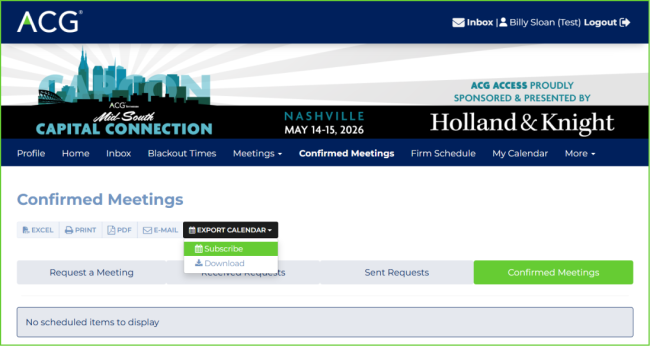
    • From the Confirmed Meetings tab, you can export or subscribe to your calendar (including meetings and events).
    • Select Export Calendar on the right side of the options bar.
      Image
      2026Capcon_ACGAccess_ExportCalendar
    • We recommend selecting Subscribe — this automatically updates your calendar as meetings are added or other event items (sessions, receptions, etc.) change. If you select Download instead, your calendar will not update automatically and must be re-downloaded to reflect any changes.
       
    • Select your calendar platform (Apple, Google, Microsoft 365, Outlook.com, or iCal) and follow the prompts to complete the subscription.
       
  • Attendee List Export
    • Export the attendee list to Excel by selecting the Meetings dropdown, then Attendee List, and clicking the EXCEL button in the top left.


Logging In

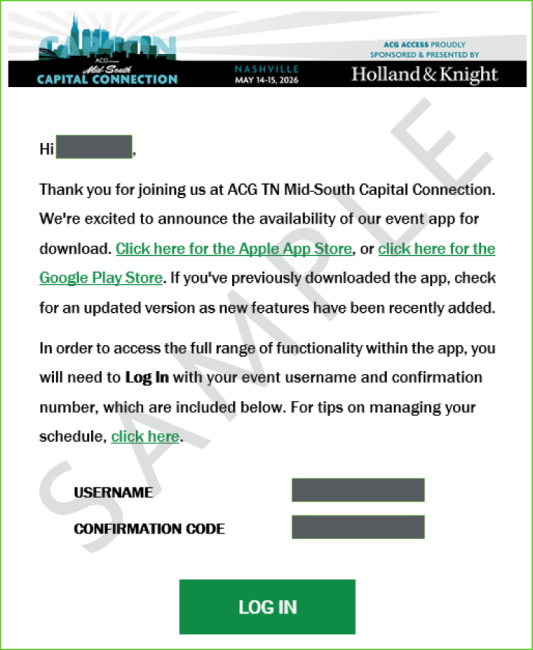
  • You will receive a login email when ACG Access launches for this event. Click the Login button at the bottom of that email.
    • Make sure your email filters allow messages from both acgmidsouth@acg.org and acgmidsouth@meetmax.com. All scheduling updates, attendee list changes, and other event communications will come from these addresses.
       
    • The login email will look something like this:
      Image
      2026Capcon_ACGAccess_EmailSample
    • It is highly recommended that you bookmark or save this login email for quick access throughout the event.
    • Your personalized login credentials will auto-populate in the username and password fields.
    • Click Login.
    • If you don't know which email address you registered with, contact acgmidsouth@acg.org with the subject line "Assistance for ACG Access."


Profile & Demographics

  • After logging in, you'll arrive at the Home Dashboard.
    • Click My Account to update your personal information and notification preferences. Click Submit to save.
    • Click Your Profile to review and update your demographic responses. Click View Profile in the top-right corner to preview how your profile appears to other attendees.
    • Make sure your profile is complete before requesting or accepting meetings — especially the Firm Type and Category fields. These fields drive how other attendees find you in search.


Meetings

  • Request a Meeting
    • Select Request Meeting under the Meetings tab to search and filter the attendee list.
    • To send a request, find the individual in the attendee list and select Request. Choose your preferred meeting duration.
    • You may suggest a time upfront.
    • Once sent, the request status will show as Pending.


Blackout Times

  • Block off times when you're unavailable for meetings.
    • Select Blackout Times from the Meetings dropdown.
    • Choose the times you want to mark as unavailable.


Event Schedule

  • View the full 2026 Mid-South Capital Connection agenda and add sessions, micro-learning opportunities, receptions, and other events directly to your calendar.


My Calendar

  • See your confirmed meetings, sessions, receptions, and all other conference events in one place.


Inbox

  • All meeting requests, confirmations, and updates will generate a notification here and in your email inbox.
  • Click Manage Request to accept or decline a request, or click Reply to message the sender directly.


Questions or Issues?

For scheduling tool support, contact acgmidsouth@meetmax.com and/or enduser-support@meetmax.com.

Event Details